How to Use ThinLine Radio on Mobile

Follow these steps to create your account, subscribe if needed, install the app, add ScannerGrid, and start listening on your phone.

Step 1: Create Your ScannerGrid Account

Start by creating your account at portal.scannergrid.net .

This is the account you will use inside the ThinLine Radio app.

Create your ScannerGrid account

Step 2: Subscribe to Your County

After registering, go to the Subscriptions page and choose the county you want access to.

Active counties require a normal subscription. Beta systems may be available during testing, and coming soon systems are not yet ready for access.

Choose your county subscription

Step 3: Download the ThinLine Radio App

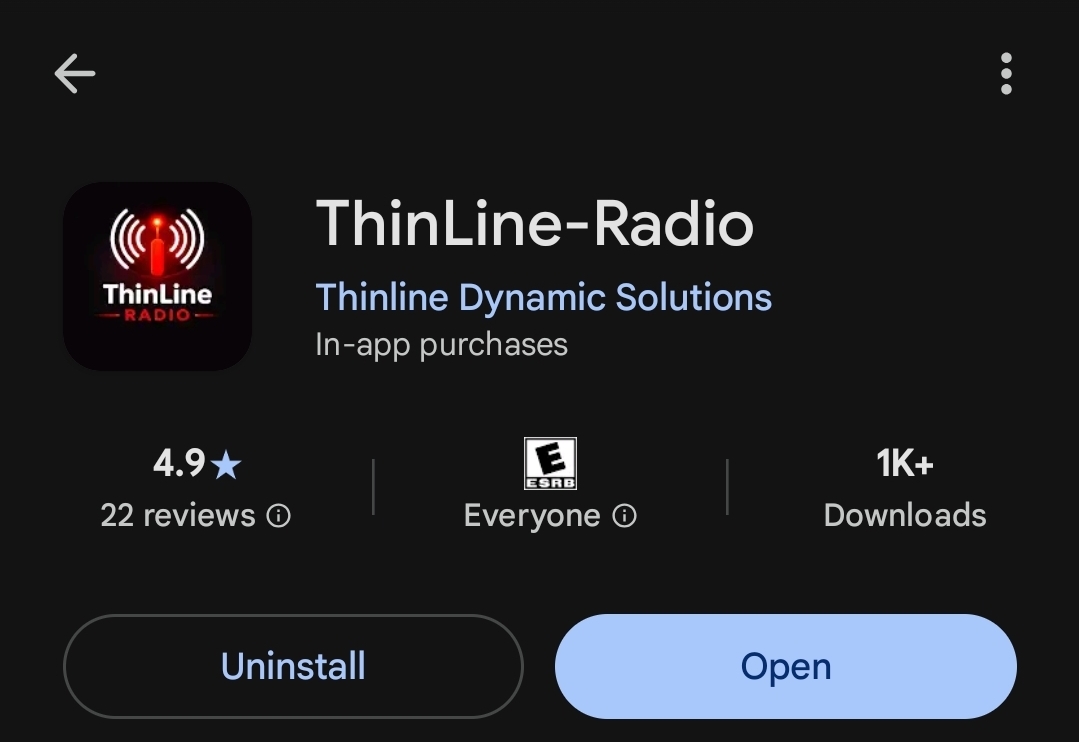
Install the ThinLine Radio app on your mobile device from your device’s app store.

Once installed, open the app and go to the app settings to add ScannerGrid.

Download ThinLine Radio on mobile

Step 4: Add ScannerGrid in App Settings

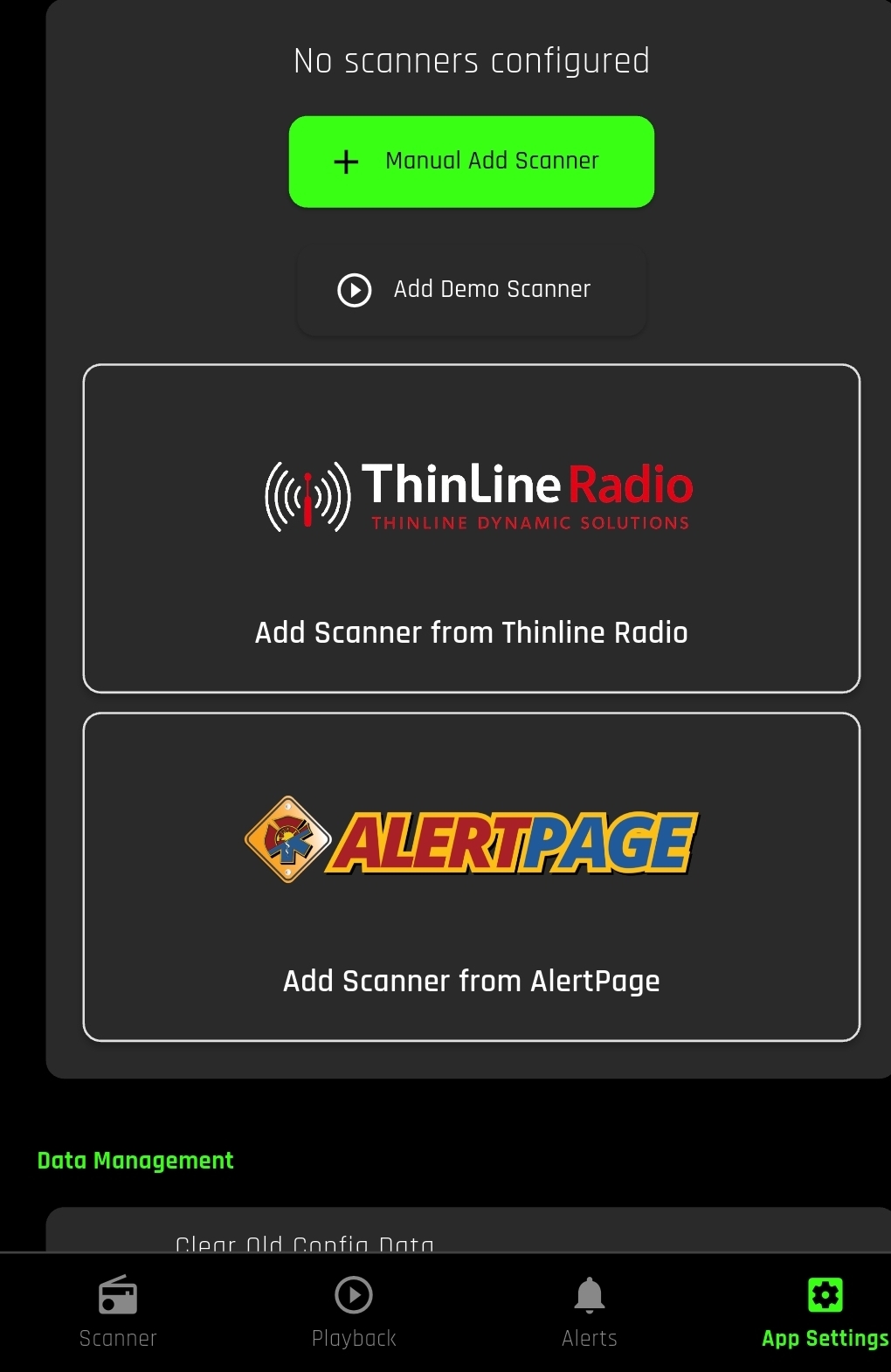
Inside the ThinLine app, open App Settings and choose the option to add a new server or provider.

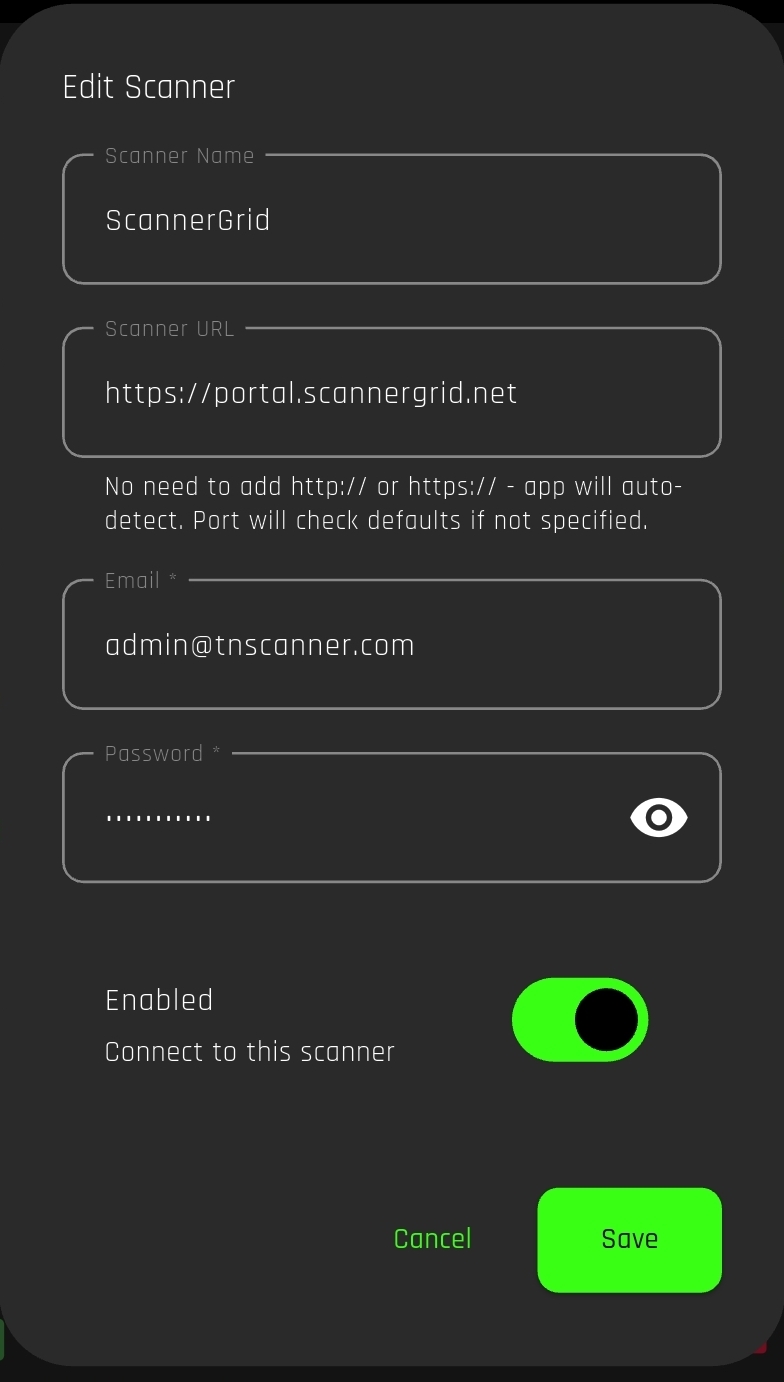
Enter the following information:

  • Name: ScannerGrid
  • URL: portal.scannergrid.net

After entering that information, a login box should appear asking for your email address and password.

Add ScannerGrid in ThinLine app settings

Step 5: Sign In With Your ScannerGrid Account

When the login box appears, enter the same email address and password you created when signing up at portal.scannergrid.net .

Once you sign in successfully, ScannerGrid should be added to the app.

Sign in to ScannerGrid inside ThinLine

Step 6: Select Your County and Start Listening

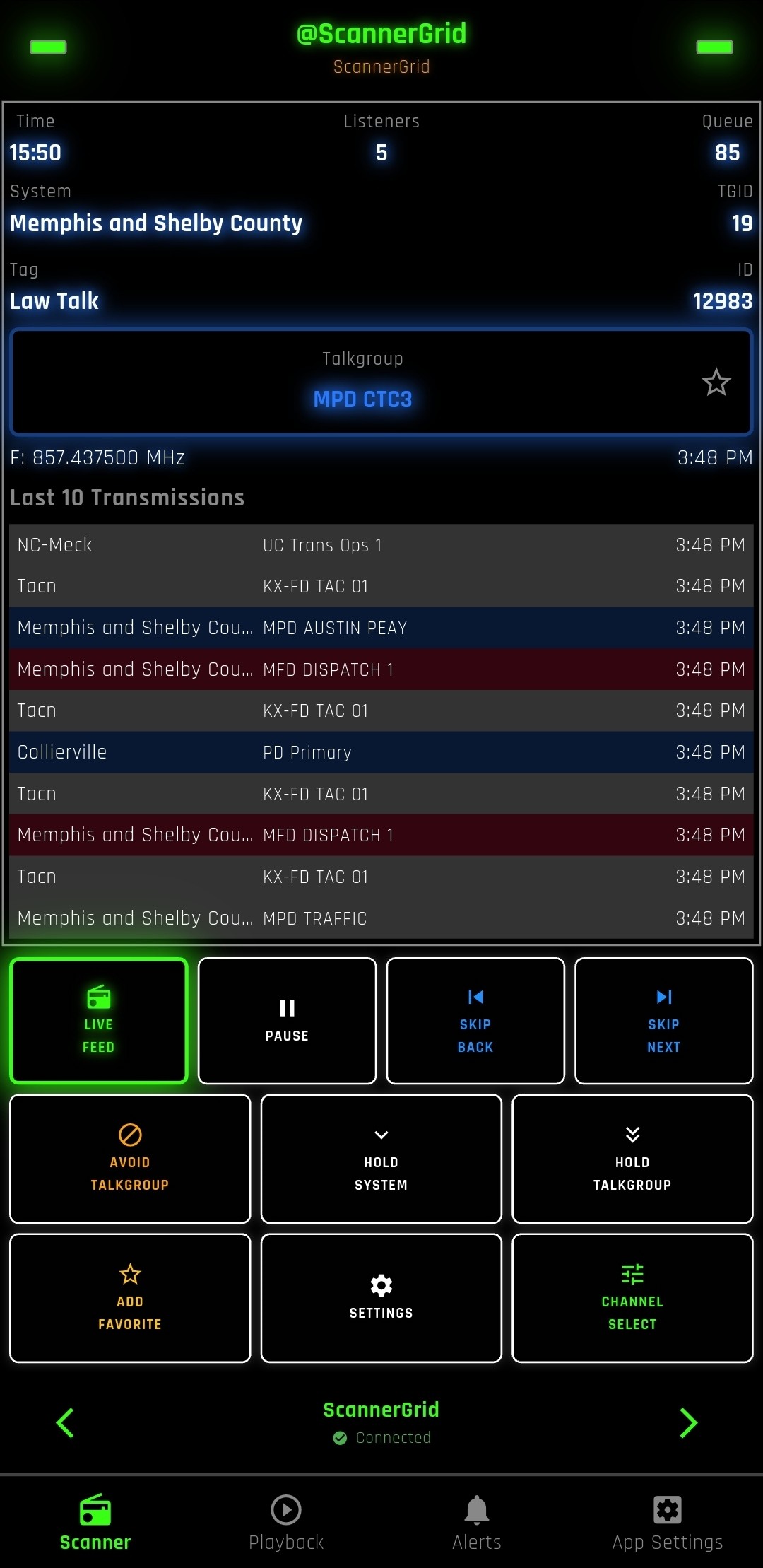
After ScannerGrid has been added and your account is signed in, select the county or feed you subscribed to.

Once your access is active, the proper systems should appear and you can begin listening.

If you do not immediately see your county, give it a few minutes after subscribing, then fully close and reopen the app.

Start listening to ScannerGrid on ThinLine

Troubleshooting

  • Make sure you created your account on the ScannerGrid portal first.
  • Make sure your subscription matches the county you want to access.
  • Be sure the server name is entered as ScannerGrid.
  • Be sure the URL is entered as portal.scannergrid.net.
  • If you subscribed recently, fully close the app and reopen it.
  • If your county is still in beta, access may vary while testing is in progress.
  • If you were previously using the older Rdio system, you may need to move to the new ScannerGrid portal system.

Need Help?

If you have trouble adding ScannerGrid, signing in, or accessing your county, contact us at [email protected].